Think Microsoft 365 Protects All Your Data? Think Again.
Many business owners assume that because their email, files, and Microsoft Teams chats are stored in Microsoft 365, everything is automatically backed up.
It’s an easy assumption to make.
After all, Microsoft hosts your data in the cloud. If something goes wrong, they should be able to restore it, right?
Not exactly.
Microsoft is responsible for protecting its cloud infrastructure and keeping Microsoft 365 running. However, protecting your business data is still your responsibility.
This is known as the Shared Responsibility Model. Understanding how it works can help protect your business from costly data loss.
What Is the Shared Responsibility Model?
Microsoft keeps Microsoft 365 available, secure, and reliable.
Its responsibilities include:
- Maintaining servers
- Managing network infrastructure
- Keeping the platform online
- Protecting Microsoft’s cloud environment
However, Microsoft is not responsible for recovering your data if it is:
- Accidentally deleted
- Permanently removed after retention periods
- Overwritten
- Corrupted
- Encrypted by ransomware
- Lost because of a compromised account
In short, Microsoft keeps the service running. Protecting your business data is up to you.
What Microsoft 365 Protects
Microsoft does an excellent job of maintaining its cloud environment.
For example, Microsoft manages:
- Platform availability
- Infrastructure maintenance
- System performance
- Security of its data centers
These services keep Microsoft 365 running smoothly. However, they are not the same as having a dedicated backup of your business data.
What’s Not Automatically Backed Up
One of the biggest misconceptions is that retention policies and version history are backups.
Unfortunately, they are not.
Microsoft 365 includes recycle bins, retention policies, and file version history. While these features help recover some files, they were never designed to replace a true backup solution.
As a result, you could permanently lose data if:
- An employee accidentally deletes important files
- A mailbox is permanently removed
- Someone empties the recycle bin
- A ransomware attack encrypts your files
- A disgruntled employee intentionally deletes business data
Without an independent backup, recovery may not be possible.
Why Access Management Matters
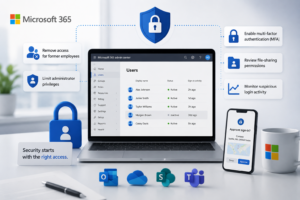
Backing up data is only one part of protecting your Microsoft 365 environment.
Equally important is managing who has access to your business information.
Review your Microsoft 365 settings regularly and make sure you:
- Remove access for former employees
- Limit administrator privileges
- Enable multi-factor authentication (MFA)
- Review file-sharing permissions
- Monitor suspicious login activity
Even small configuration mistakes can become major security incidents if left unchecked.
Why This Matters More Than Ever
Cyber threats continue to evolve.
At the same time, businesses face greater expectations from insurance providers, customers, and compliance requirements.
Because of this, protecting your Microsoft 365 data is more important than ever.
Recovering from data loss is often far more expensive than preventing it.
Downtime, lost customer information, and interrupted operations can quickly cost more than investing in a reliable backup solution.
How to Protect Your Microsoft 365 Data
Protecting your Microsoft 365 environment requires more than a single security measure.
Instead, use multiple layers of protection to reduce risk.
Start with these best practices:
- Use an independent cloud backup solution
- Enable multi-factor authentication (MFA)
- Review user permissions regularly
- Back up Exchange Online, OneDrive, SharePoint, and Teams
- Test your backup recovery process
- Train employees to recognize phishing attempts
Together, these practices strengthen your security and improve your ability to recover from unexpected events.
What This Means for Your Business
Microsoft 365 is a powerful productivity platform.
However, it is not a complete backup solution.
Understanding the difference between platform availability and data protection is essential for every business.
By taking action today, you can better protect your emails, files, customer information, and daily operations from accidental deletion, cyberattacks, and other unexpected events.

Need Help Protecting Your Microsoft 365 Environment?
Venice Web Design helps businesses secure their Microsoft 365 environment through cloud backup solutions, access management, and security best practices.
If you’re unsure whether your Microsoft 365 data is properly protected, we’re happy to review your current setup, identify potential gaps, and recommend practical solutions.
Contact us today to schedule your free consultation.
Frequently Asked Questions
Does Microsoft automatically back up Microsoft 365?
No. Microsoft provides platform availability and limited recovery features, but it does not provide a complete backup solution for your business data.
What’s the difference between retention and backup?
Retention policies keep data for a set period, while a backup creates a separate copy that can be restored if data is deleted, corrupted, or affected by ransomware.
What Microsoft 365 data should be backed up?
Businesses should back up Exchange Online emails, OneDrive files, SharePoint libraries, Microsoft Teams data, and other critical business information.
Why is multi-factor authentication important?
Multi-factor authentication adds another layer of security by requiring a second form of verification before someone can access an account.
How often should Microsoft 365 data be backed up?
Most businesses benefit from automated daily backups with regular testing to ensure files can be restored when needed.